
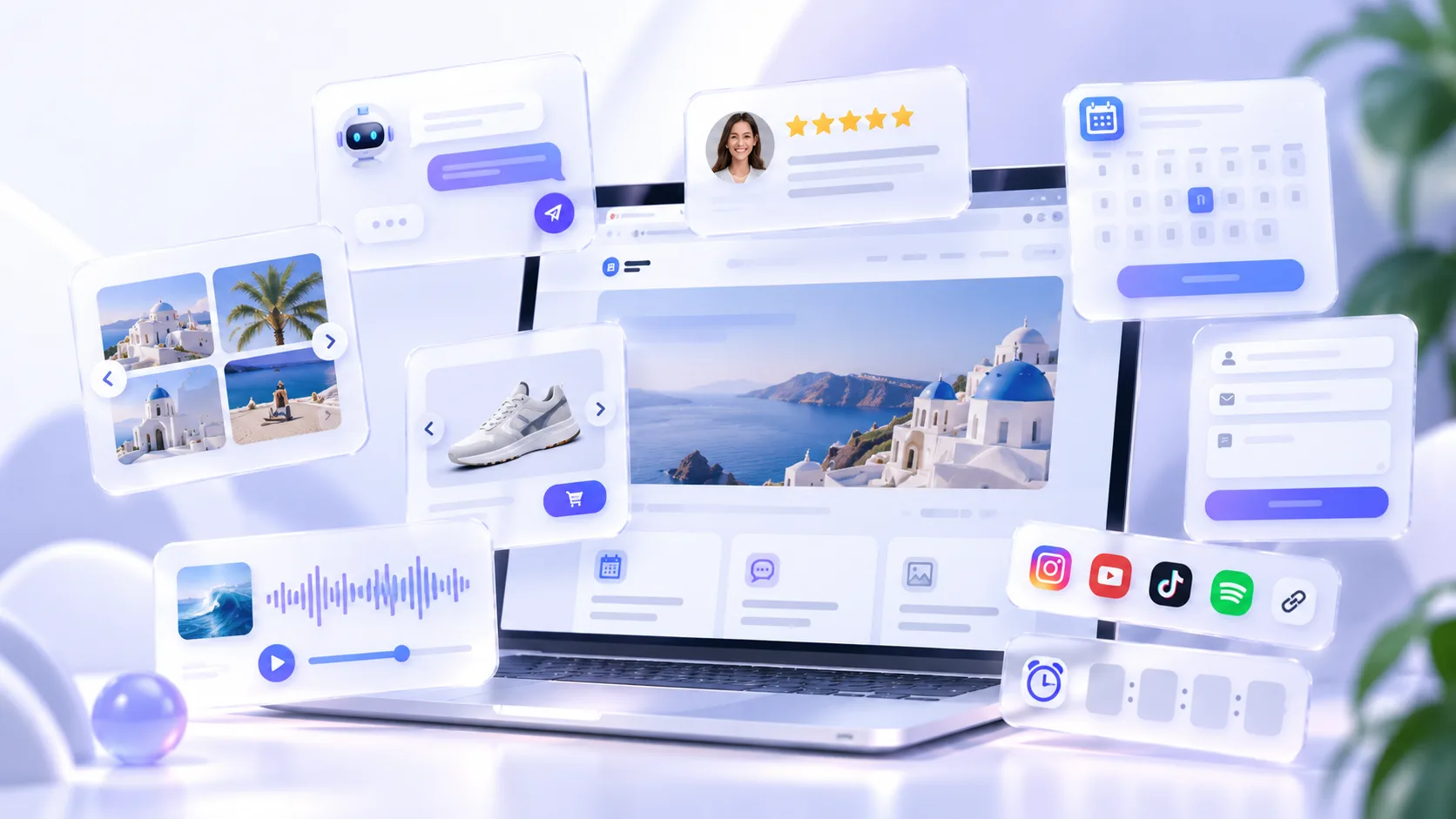
A website does not need to be rebuilt every time you want to collect a lead, display reviews, answer a question, or let someone book an appointment. Website widgets add focused functionality to an existing page. The challenge is choosing the right ones and making them feel like a natural part of your site.
What is a website widget?
A website widget is a self-contained interface or feature that you can add to a website. It might be a contact form embedded in a page, a chat button floating in the corner, a gallery, or a booking interface. Widgets are usually configured separately and installed with an embed snippet or through a website builder integration.
A widget is not necessarily a plugin. Plugins are typically installed inside a specific content management system; embedded widgets can often work across different website stacks. Always check the provider’s supported platforms, installation requirements, and data-handling practices.
Why use widgets?
Widgets help teams introduce useful features without developing and maintaining every interaction themselves. A restaurant can publish a menu or collect reservations; a creator can showcase audio and video; a service business can gather inquiries and display testimonials.
The main benefits are speed, flexibility, and easier iteration. The trade-offs can include additional scripts, third-party dependencies, ongoing subscriptions, and limits on customization. A widget is useful when the value of the feature outweighs those costs.
Common types of website widgets
- Forms and lead capture — contact requests, surveys, feedback, and newsletter signups.
- Reviews and social proof — testimonials, ratings, and customer feedback.
- Chat and support — answering questions and directing visitors to the right information.
- Booking and scheduling — appointment requests, availability, and event registrations.
- Media and content — image galleries, audio players, videos, PDFs, and social content.
- Engagement and conversion — polls, announcements, countdowns, promotions, and interactive experiences.
- Navigation and utility — FAQs, business hours, links, and other helpful on-page tools.
Start with the job the visitor needs to complete, not the number of widgets a platform offers. A single clear booking action can be more valuable than several attention-grabbing elements competing for space.
How to choose the right widgets
- Define the outcome: more inquiries, fewer support questions, better product discovery, or something else measurable.
- Check the visitor experience on phones as well as desktops, including keyboard navigation and readable text.
- Look for styling controls that match your site’s typography, spacing, colors, and layout.
- Understand where submissions and messages go, who can access them, and how you can export them.
- Verify compatibility with your website platform and whether embeds can be limited to approved domains.
- Test loading behavior, privacy implications, and whether the widget interferes with the rest of the page.
- Review the limits that matter to your use case: sites, views, responses, storage, AI usage, or messages.
Free vs paid widgets: what affects the cost?
Many platforms provide a free starting tier, while paid plans may unlock higher usage limits, more customization, additional sites, or advanced features. Some services charge per widget, others bundle several widgets into one subscription, and others bill for usage such as AI processing, SMS, or email delivery.
Rather than relying on a single headline price, calculate the total cost for the features you actually need. A simple widget may cost nothing; a site using multiple premium features can require a recurring budget. Pricing varies widely, and plans and limits change, so check the provider’s current pricing page before making a decision.
What makes Pliget different?
Pliget brings a broad range of website widgets into one toolkit. Instead of piecing together separate providers for reviews, forms, media, engagement, and communication, you can explore those tools in one catalog and manage your widgets from one dashboard. Start with a free plan to try the workflow, then choose a paid plan when your needs grow.
A practical advantage of Pliget’s paid plans is access to all standard widgets with unlimited ordinary widget views. That means ordinary impressions are not metered as an extra usage charge. Limits still apply to resources such as AI processing, storage, and certain actions, and the free plan has its own restrictions. Check the current pricing page for the precise allowances.
You can also customize how widgets look and embed them into different website stacks. The important question is not just whether a tool exists, but whether it fits your brand, works on mobile, and can be managed without rebuilding the site.
Popular widget platforms
Platforms such as Elfsight, POWR, and Common Ninja also offer website widgets. When comparing options, look beyond a headline price: check whether you pay for individual widgets, how ordinary views are counted, which features are included, and whether your widgets can be managed together. Pliget is designed around a shared toolkit and, on paid plans, unlimited ordinary widget views.
How to add a widget to a website
- Choose the feature and configure its content, appearance, and behavior.
- Preview it at desktop and mobile widths; check both light and dark sections of your site.
- Copy the provider’s embed code or use its supported website-builder integration.
- Insert it in the appropriate page or template and publish your website.
- Test the live page, including submissions, links, consent behavior, and error states.
- Monitor results and remove anything that is not helping visitors.
The exact installation steps differ between HTML sites, WordPress, Shopify, Wix, and other platforms. Some builders restrict custom scripts or require a particular plan, so consult their current documentation.
Best practices for a better experience
- Keep the page focused: use one primary call to action instead of stacking competing popups.
- Place widgets near relevant content rather than forcing every feature to float over the page.
- Make dismissible elements easy to close and avoid covering navigation or form controls.
- Check accessibility: labels, contrast, focus indicators, reduced motion, and screen-reader behavior.
- Load only what you need and check performance on slower connections.
- Treat visitor data carefully: explain collection, configure consent where required, and limit access.
- Revisit your widgets when the website design or business workflow changes.
Getting started
Choose one meaningful task, add a widget that solves it, and test the result with real visitors. If you want to explore different types of widgets, browse the Pliget widget catalog and start with a feature that directly supports your site’s goals.